Pages

Showing posts with label Use Its. Show all posts

keyboard shortcuts


Getting used to using your keyboard exclusively and leaving your mouse behind will make you much more efficient at performing any task on any Windows system. I use the following keyboard shortcuts every day:

Windows key + R = Run menu


This is usually followed by:

cmd = Command Prompt
iexplore + “web address” = Internet Explorer
compmgmt.msc = Computer Management
dhcpmgmt.msc = DHCP Management
dnsmgmt.msc = DNS Management
services.msc = Services
eventvwr = Event Viewer
dsa.msc = Active Directory Users and Computers
dssite.msc = Active Directory Sites and Services
Windows key + E = Explorer

ALT + Tab = Switch between windows


ALT, Space, X = Maximize window


CTRL + Shift + Esc = Task Manager


Windows key + Break = System properties


Windows key + F = Search


Windows key + D = Hide/Display all windows


CTRL + C = copy


CTRL + X = cut


CTRL + V = paste


Also don’t forget about the “Right-click” key next to the right Windows key on your keyboard. Using the arrows and that key can get just about anything done once you’ve opened up any program.


Keyboard Shortcuts


[Alt] and [Esc] Switch between running applications


[Alt] and letter Select menu item by underlined letter


[Ctrl] and [Esc] Open Program Menu


[Ctrl] and [F4] Close active document or group windows (does not work with some applications)


[Alt] and [F4] Quit active application or close current window


[Alt] and [-] Open Control menu for active document


Ctrl] Lft., Rt. arrow Move cursor forward or back one word


Ctrl] Up, Down arrow Move cursor forward or back one paragraph


[F1] Open Help for active application


Windows+M Minimize all open windows


Shift+Windows+M Undo minimize all open windows


Windows+F1 Open Windows Help


Windows+Tab Cycle through the Taskbar buttons


Windows+Break Open the System Properties dialog box


acessability shortcuts


Right SHIFT for eight seconds…….. Switch FilterKeys on and off.


Left ALT +left SHIFT +PRINT SCREEN……. Switch High Contrast on and off.


Left ALT +left SHIFT +NUM LOCK……. Switch MouseKeys on and off.


SHIFT……. five times Switch StickyKeys on and off.


NUM LOCK…… for five seconds Switch ToggleKeys on and off.


explorer shortcuts


END……. Display the bottom of the active window.


HOME……. Display the top of the active window.


NUM LOCK+ASTERISK……. on numeric keypad (*) Display all subfolders under the selected folder.


NUM LOCK+PLUS SIGN……. on numeric keypad (+) Display the contents of the selected folder.


NUM LOCK+MINUS SIGN……. on numeric keypad (-) Collapse the selected folder.


LEFT ARROW…… Collapse current selection if it’s expanded, or select parent folder.


RIGHT ARROW……. Display current selection if it’s collapsed, or select first subfolder.


Type the following commands in your Run Box (Windows Key + R) or Start Run


devmgmt.msc = Device Manager

msinfo32 = System Information
cleanmgr = Disk Cleanup
ntbackup = Backup or Restore Wizard (Windows Backup Utility)
mmc = Microsoft Management Console
excel = Microsoft Excel (If Installed)
msaccess = Microsoft Access (If Installed)
powerpnt = Microsoft PowerPoint (If Installed)
winword = Microsoft Word (If Installed)
frontpg = Microsoft FrontPage (If Installed)
notepad = Notepad
wordpad = WordPad
calc = Calculator
msmsgs = Windows Messenger
mspaint = Microsoft Paint
wmplayer = Windows Media Player
rstrui = System Restore
netscp6 = Netscape 6.x
netscp = Netscape 7.x
netscape = Netscape 4.x
waol = America Online
control = Opens the Control Panel
control printers = Opens the Printers Dialog

internetbrowser


type in u’re adress “google”, then press [Right CTRL] and [Enter]

add www. and .com to word and go to it

For Windows XP:


Copy. CTRL+C

Cut. CTRL+X
Paste. CTRL+V
Undo. CTRL+Z
Delete. DELETE
Delete selected item permanently without placing the item in the Recycle Bin. SHIFT+DELETE
Copy selected item. CTRL while dragging an item
Create shortcut to selected item. CTRL+SHIFT while dragging an item
Rename selected item. F2
Move the insertion point to the beginning of the next word. CTRL+RIGHT ARROW
Move the insertion point to the beginning of the previous word. CTRL+LEFT ARROW
Move the insertion point to the beginning of the next paragraph. CTRL+DOWN ARROW
Move the insertion point to the beginning of the previous paragraph. CTRL+UP ARROW
Highlight a block of text. CTRL+SHIFT with any of the arrow keys
Select more than one item in a window or on the desktop, or select text within a document. SHIFT with any of the arrow keys
Select all. CTRL+A
Search for a file or folder. F3
View properties for the selected item. ALT+ENTER
Close the active item, or quit the active program. ALT+F4
Opens the shortcut menu for the active window. ALT+SPACEBAR
Close the active document in programs that allow you to have multiple documents open simultaneously. CTRL+F4
Switch between open items. ALT+TAB
Cycle through items in the order they were opened. ALT+ESC
Cycle through screen elements in a window or on the desktop. F6
Display the Address bar list in My Computer or Windows Explorer. F4
Display the shortcut menu for the selected item. SHIFT+F10
Display the System menu for the active window. ALT+SPACEBAR
Display the Start menu. CTRL+ESC
Display the corresponding menu. ALT+Underlined letter in a menu name
Carry out the corresponding command. Underlined letter in a command name on an open menu
Activate the menu bar in the active program. F10
Open the next menu to the right, or open a submenu. RIGHT ARROW
Open the next menu to the left, or close a submenu. LEFT ARROW
Refresh the active window. F5
View the folder one level up in My Computer or Windows Explorer. BACKSPACE
Cancel the current task. ESC
SHIFT when you insert a CD into the CD-ROM drive Prevent the CD from automatically playing.

Use these keyboard shortcuts for dialog boxes:


To Press

Move forward through tabs. CTRL+TAB
Move backward through tabs. CTRL+SHIFT+TAB
Move forward through options. TAB
Move backward through options. SHIFT+TAB
Carry out the corresponding command or select the corresponding option. ALT+Underlined letter
Carry out the command for the active option or button. ENTER
Select or clear the check box if the active option is a check box. SPACEBAR
Select a button if the active option is a group of option buttons. Arrow keys
Display Help. F1
Display the items in the active list. F4
Open a folder one level up if a folder is selected in the Save As or Open dialog box. BACKSPACE

If you have a Microsoft Natural Keyboard, or any other compatible keyboard that includes the Windows logo key and the Application key , you can use these keyboard shortcuts:


Display or hide the Start menu. WIN Key

Display the System Properties dialog box. WIN Key+BREAK
Show the desktop. WIN Key+D
Minimize all windows. WIN Key+M
Restores minimized windows. WIN Key+Shift+M
Open My Computer. WIN Key+E
Search for a file or folder. WIN Key+F
Search for computers. CTRL+WIN Key+F
Display Windows Help. WIN Key+F1
Lock your computer if you are connected to a network domain, or switch users if you are not connected to a network domain. WIN Key+ L
Open the Run dialog box. WIN Key+R
Open Utility Manager. WIN Key+U

accessibility keyboard shortcuts:


Switch FilterKeys on and off. Right SHIFT for eight seconds

Switch High Contrast on and off. Left ALT+left SHIFT+PRINT SCREEN
Switch MouseKeys on and off. Left ALT +left SHIFT +NUM LOCK
Switch StickyKeys on and off. SHIFT five times
Switch ToggleKeys on and off. NUM LOCK for five seconds
Open Utility Manager. WIN Key+U

shortcuts you can use with Windows Explorer:


Display the bottom of the active window. END

Display the top of the active window. HOME
Display all subfolders under the selected folder. NUM LOCK+ASTERISK on numeric keypad (*)
Display the contents of the selected folder. NUM LOCK+PLUS SIGN on numeric keypad (+)
Collapse the selected folder. NUM LOCK+MINUS SIGN on numeric keypad (-)
Collapse current selection if it’s expanded, or select parent folder. LEFT ARROW
Display current selection if it’s collapsed, or select first subfolder. RIGHT ARROW

Share Your Laptop Internet Over WiFi Easily Without Installation


Sometimes we need to create a WiFi hotspot quickly so other wireless devices (smartphone or other laptop) can use an Internet connection. Today we are going to take a look at Connectify, a tool which can easily turns your Windows 7 machine into an instant WiFi hotspot.

In most of the cases we often come across a problem, a single internet connection is available on a laptop/pc, than how to share system internet with other devices? Now if we want to use the same internet connection for other Wi-Fi connectivity devices like other PC's, laptops, smartphones, tablet or any other devices there arises a complexity. Here free mHotSpot v5.0 app come in action. New version 5.0 is much better than before.


mHotSpot is very tiny app and using mhotspot software you can setup a wireless network at your home or office or on mobile. Its the simplest method to do so. Any no. of wifi connectivity devices can be connected to the thus created network. Even the Android and other smartphones without any further modifications into them, can access the wifi internet.
You can share your internet over wifi in just two steps!! NO INSTALLATION!! required for this. mhotspot is a free-software that converts your wifi enabled LAPTOP/PC running windows OS into a virtual wifi hotspot and share your internet through wifi to other laptops, smartphones, PDA's, Tablet-PCs or any other wifi connectivity devices.

Features in mHotSpot v5.0 for Windows:

  > Create a Wifi-Hotspot in you laptop (Currently Windows 7 only)
  > No Installation required
  > Fully customizable Hotspot Name
  > Share any type of Internet Connection(LAN, Ethernet,3G/4G,Wifi etc)
  > Extends your Wifi range(Acts as a repeater)
  > In-app internet selection
  > Works for Android and other smartphone with Wi-Fi to access the created wifi network.

Instructions to Use:
  > Download zip file from direct link given below and extract "mhotspot.exe".
  > Double click the mhotspot.exe file (may be you need to run as administrator).
  > Enter any name of your choice as Hotspot name.
  > Choose a password of minimum 8 chars.
  > Select your active internet connection from the drop-down list of connections.
  > Click start Hotspot to start your own personal wifi hotspot.

Supported OSs: Windows 7 (Compatibilty for Windwos 8,Vista, XP will be come in mHotSpot v6.0)

Download Free mHotSpot v5.0 for Windows:  

Send Free Unlimited SMS Worldwide to all Operators with Fake number

Send Free Unlimited SMS Worldwide with Fake number


Step 1- To send Free Unlimited Sms with any Number just open www.pumpsms.com@ekajanbi.in.


Step 2 - Select your Country and Code.
Step 3 - After Selecting  Country Code Enter the Phone Number in which you wanna send Sms .
Step 4 - Enter Text Message
Step 5 - Click on Send Sms
 Done.. 

NOTE:- Don’t send abusive messages to somebody using the above site as you can be traced .

Hack Password Yahoo ID or Messenger With Magic PS v1.5

Magic PS v1.5 SE FINAL is a free tool to hack any Yahoo mail ID or Yahoo Messenger password. You can use it to get password for any yahoo or messenger ID. Magic PS v1.5 is a Powerfull Password Sender for Yahoo!.

Magic PS v1.5 or Yahoo Cracker MPS 1.5 Final version sends victim ID's pass to your id. It work without any smtp and script

Working tested on Windows 98, Me, NT, 2000, XP and Vista, 7 OSs. I'm giving this app just for user request and for ethical use or educational purpose and plz do not ask me how to use Magic PS application. 


Free Download Link for Magic PS v1.5 SE FINAL Hack Password Yahoo ID or Messenger: 


Password Protect Pen Drives with USB Secure


USB Secure is a great tool to password protect USB drives and all other portable media so that no one can access your data even if they are lost or stolen. Protection is PC independent, doesn't require installation and doesn't require administrator rights at the other end. Never again worry about lost or stolen USB drives if you have protected it with USB Secure. USB Secure works with all types of portable media like USB Flash drives, Thumb drives, Memory sticks, External drives and Memory Cards.


The Main Features in USB Secure: Portable
• Take your secure USB drive anywhere
• Plug in to any PC and it will run
• No Administrator rights are needed
• Protection is PC independent Theft Proof
• Password protect USB drive data
• Don't worry about lost USB drives
• Stolen USB drives are not a problem
• Misplaced USB drives? No worries! Leak Proof
• Data is leak proof
• Take your documents with you
• Business plans go nowhere
• Financial documents stay with you Loss Proof
• Inaccessible data without password
• Can't be lost or deleted
• Can't be tampered with easily
• Ideal to keep a secure backup copy Plug & Play
• Supports Autoplay feature
• Setup detects all devices attached
• Runs automatically on drive access
• Autoplay for protecting & unprotecting Fast
• Fast and reliable
• PC Independent protection
• Quickly protect data
• Takes seconds to protect GBs of data

USB Secure helps you password protect USB drive, thumb drive, memory stick, pen drive, jump drive, flash drive and external hard drive. It supports plug and play and runs automatically once a USB drive is plugged in, asking you the password for it. USB Secure is hassle free and it doesn’t need a rocket scientist to master.


USB drives are the most popular way to move data from one PC to another. They are small in size but can carry gigabytes of data. They are easy to use, convenient, affordable, but at the same time they pose a security risk and can be easily lost, stolen or misplaced. A secure USB drive i.e., a password protected USB drive is a must these days as the data that it contains may cost you millions of dollars if stolen or lost.


You can easily lock USB drives with USB Secure and can also password protect memory sticks and all other external storage devices with just a single mouse click. An easy to use setup program will guide you to put the program on your USB drive. It can automatically detect all such drives currently plugged into your PC. After installing simply run the software, set and confirm a password, protect USB drive and sit back and relax!


It’s not necessary to run the software every time you want to protect USB drive; you can simply choose ‘Protect This USB Drive’ option from the Windows Autoplay that pops up every time you plug-in your USB drive. You can also double click the USB drive in your PC to launch the program. To unprotect your secure USB drive, click 'Unprotect' and enter correct password to access your data again.


Another great feature of USB Secure is that it doesn’t require any Administrator rights to run and therefore there is no need to install it at the other end to retrieve the password protected data. The program also supports plug & play and asks for a password immediately when the drive is plugged-in. Password protect USB drive and other portable media with USB Secure. cont. me
sajanbi@facebook.com

Buy Pen Drive on low Price :)

Buy 8GB Pen Drive for Rs. 218 and 16GB Pen Drive for Rs. 445

Buy 8GB Pen Drive for Rs. 218 and 16GB Pen Drive for Rs. 445
Low Price Pen Drives
Here some great offer that really should grab before they goes to end. You can buy 8GB Pen Drives starting from Rs. 218 and 16GB Pen Drives from Rs. 445 prices. The lowest online prices available for USB flash drives.


Just follow the steps to avail this offer by snapdeal. This offer is only valid or new user registration but already register user need to pay Rs. 50 more. When a new user will register, will get a coupon of worth Rs.50. You can use this coupon code when shopped for Rs.250 or more. You can select from variety of flash drives like HP Pen Drive 8GB V165W for Rs. 218 or Sandisk Cruzer Blade 16Gb Pen Drive for just price Rs. 445 etc.

How to Get This Offer:
Click here to login by filling your name, city (choose any) and mobile number.
~ You'll get a coupon code for Rs. 50 discount on mobile.
~ If you already register simply do another registration with different mobile using above link to get code.
Click here to go to pen drive page.
~ Select the pen drive you need and add product to cart.
~ Use Rs. 50 snapdeal cash to get discount and make remaining payment using netbanking/debit/credit card.
And yes, not forget to share this with your friends to let them benefit of the offer, just click on Like  it..sajanbi@facebook.com

Homeshop18 running a sale on Memory Cards

where price starts as: 4GB MicroSD Card at Rs.114, 8GB MicroSD Card at Rs.189, 16GB MicroSD


Homeshop18 running a sale on Memory Cards where price starts as: 4GB MicroSD Card at Rs.114, 8GB MicroSD Card at Rs.189, 16GB MicroSD

All this possible with homeshop18 special Gift Voucher which gives you flat Rs. 50 discount on selected products. Some products already discounted. You can choose from wide range of memory cards available in different popular brands like Kingston, Strontium, MoserBaer, Samsung, SanDisk, Transcend and Xelectron. Save big money and shop them now before stock goes to end. 


How to Get 4GB at Rs.114, 8GB at Rs.189, 16GB at Rs.509:
~ Click Here to visit Homeshop18 Memory card page.
~ Select memory card and click buy now.
~ Login/registerand fill your shipping details.
~ Apply homeshop18 special Gift Voucher: GCDZUZMZCQFB to get flat Rs.50 off.
~ Pay rest amount using Credit Card/ Debit Card, Net Banking or Cash on Delivery.


And yes, not forget to share this with your friends to let them benefit of the offer, just click on Like, +1 or Tweet it.

High Discounts On Online Mobile Recharge


Sulekha launches a new Online Mobile Recharge where they giving high discount on recharges of different mobile operators and circles in India. All type of prepaid recharge will get discount which give full talktime on recharge. Get Lowest  priced Mobile top-ups.

This Online Mobile Recharge service currently available only for Delhi, Mumbai, Kolkata and Chennai circles for Airtel, Aircel, BSNL, Vodafone, Reliance GSM/CDMA, MTNL, Idea, MTS, Uninor, Videocon and Tata Docomo service providers. For exp, you can save easily Rs. 6 on Rs. 50 recharge. Don’t miss the India’s lowest priced Mobile top-ups. Just select your Circle and Operator and it’ll show you all available recharges or topup. For more Online Mobile Recharge details just checkout on offer page below.


Steps High Discounts for Online Mobile Recharge:

Click Here to open offer page.
> select your Circle and Operator and select recharge value.
> Enter mobile number and details and proceed to pay.
> Make rest payment using Debit Card/ATM Card/Credit Card (Visa/ MasterCard/Maestro), Net Banking, etc.

Buy Razorbee Smart TV Upgrader at Rs. 1546: Turn TV to Smart Internet TV


Now you can easily convert your simple TV into internet smart TV. Just get this affordable Razorbee Smart TV Upgrader for Low Price only Rs. 1,546 at 82% off (MRP Rs. 8995). The Razorbee Smart TV upgrade will turn your normal TV into Smart TV to enjoy web browsing, watching YouTube videos, quick & TV-friendly search, playing media from USB or Memory Card and other features. Its comes with free home delivery in India and warranty and cash on delivery options. Limited stock.


RazorBee Smart TV Upgrader is an low budget Android device for TVs. Features unique touchpad based remote QWERTY keypad and TV friendly user interface, it makes accessing web an effortless and enjoyable experience in the living room. It has DLNA player that allows DLNA enabled mobile phones, tablets or PCs to push music, photo and videos to play on TV. The customizable Home screen allows creating shortcuts and dynamic bookmarks. It has Media player to play most of Audio and Video formats. Other specs are Android 2.2, 600Mhz Cortex A8 Processor, 256MB RAM, 2GB Internal Memory, 2 x USB Port, SDCARD Slot, TV Output: AV (CVBS) or VGA, 3.5 mm Headphone out and Mic in, Network Connection: Ethernet or USB Wifi Dongle. Seventymm.com also offer no questions asked 7 days money back. Don’t miss this recommended tab at lowest online/offline market price if you review it.

Where to Buy Razorbee Smart TV Upgrader for Low Price 1546:


Click Here to open offer page.
> Select product and click on Buy now and proceed to pay.
> Login/register and fill shipping details.
> No need to use Seventymm promo coupon codes, you’ll see notice: “Save  Rs. 75 more on this order by paying online”.
> Make rest payment using Debit Card (ATM Card), Credit Card, Net Banking, EMI, Cash on Delivery etc

Great Online Shopping Festival India by Google on 12-12-12


Watch out 12- 12- 2012 get your credit/debit cards ready and make your wishlist of products to buy as Google bringing in the Great Online Shopping Festival in India. On that single day Google will be offering the best deals ever from a whole bunch of Indian online shopping sites like Flikart, Myntra, Pepperfry, Homeshop18, Jabong and more.


Google may be trying to make this one day shopping festival marking India’s own Cyber Monday or Blackfriday. Google has partnered with some of the great Indian online shopping sites to offer Indian customers exclusive one day deals. You can check the deals page to see the participating Indian online shopping sites and the specific deal for that day.
It seems while the time of posting some exclusive deals have already popped up like, ( only listing some of the deals which seems interesting )
  • Indiatimes Shopping is offering “12% Extra OFF on Mobiles & Tablets Coupon Code: MOBTAB Valid on 12th December with a Maximum Discount Rs 500
  • RedBus offering Flat 10% OFF on every bust ticket
  • Babyoye offering Rs 150 Off on shopping above Rs 1500 and Upto 50% Off on Clothes, Diapers & more with coupon code BO150
  • BagsKart offering Flat Rs 300 OFF on all Bags purchase above Rs 1200 using the coupon code FESTIVEBAGS.
It seems users can only avail this exclusive deals on 12th December 2102, as currently the “buy” button on the website isn’t active. Also the coupon code and deals are valid only on 12th December for 24 hours. Google has also put up online guide for first time shoppers to clear their doubts and inhibitions with simple 10 point explanation about everything to do with online shopping.
Google India is also promoting heavily the same using social media. Users can keep track of all the things they want to purchase by just tweeting the wishlist using the hashtag #OnlineShopFest. Google also release some teaser videos promoting the same,

How To Download YouTube Videos as MP3


YouTube is the No.1 Video sharing site that allows you to watch millions of videos without downloading them. It works inside your browser as a Flash file and you can see the video without using any plugin or any kind of software. You can also upload your own videos to YouTube so the whole world can watch it. The one thing that YouTube lacks is the option for downloading videos.

 YouTube, currently, does not provide an option to download videos, however, having the big inventory of videos, there are some tricks that you can use to download videos from YouTube. YouTube has millions of songs, but sometimes, you need only the MP3 file of that song so you can listen it on your smartphone or on iPod. Well, you have come to the right place as we are going to show you how you can download YouTube videos as MP3.

In order to download MP3 from YouTube, you need to use a third-party website that will easily grab the file from the site and will convert it and then you will be given a link to download the MP3, isn’t it great? Compared to video file formats, MP3 file format will have less size therefore it won’t take much time to download.

Download MP3 from YouTube:

  • First of all, you have to go to the Vid2MP3 website that offers you to convert YouTube videos to MP3 and then to download it.
  • When you are on the site, just enter the URL of the Video for which you want the MP3 file.
  • It allows you to choose the quality of the file, Standard Quality and High Quality. You can choose any of these you want. You should know that High Quality will file will be high in size.
  • Once you are done with the above steps, just click on Download button and the process of converting video to MP3 will begin.
Depending on the video size, it will take from a few seconds to a few minutes. Thereafter, you will have a link on your screen to download the file and you will then have what you wanted.

Windows 7 Blue Screen Problems and How To Fix This Error


The blue screen error — also known as Blue Screen of Death (
BSOD) — is pretty common on all versions of Windows, be it the oldest or even the newest one. This error can get really annoying. It can even block users from logging onto their Windows operating system. As a result, the system is seemingly impossible to use at all. But what PC users should keep in mind is that they are not the only people to experience this particular problem. As mentioned earlier, it has been pretty common and, fortunately, people have found out some workaround methods that may prove to be quite effective in solving the BSOD.


BSOD Triggers
However, it is important to understand what may have triggered the BSOD. Most of the time, BSOD can be triggered by a recent change in either the computer’s hardware or software. For example, a newly installed hardware will most likely need proper driver files in order to work properly. Although it is true that the drivers are normally provided with the hardware, there are times when the driver files may happen to be corrupted. Another possibility is that one or more of the applications or software installed on the system encounters conflicts. Also, taking into accounts that drivers are software as well, they may just as well trigger the conflicts.
Yet, if the problem is not on the software, chances are there is something wrong with the hardware. It may have been damaged or installed improperly. In this case, it is always a good idea to try using the hardware in question on another computer to see if it works.
How to Solve BSOD
There are several ways that may well solve the blue screen error. The first way is to uninstall the drivers and try to install the latest drivers from the website of the hardware vendor. Secondly, it is worth trying to uninstall the device using the Device Manager utility. Last but not least,
System Restore utility built into Windows may also be pretty helpful.
However, some people may wonder how they can run all these utilities if they cannot even log onto Windows. Well, the
Safe Mode provided with each version of Windows is normally the answer to this. When the computer is trying to boot after passing the self diagnosis process, constantly hitting the F8 key will usually display a list of advanced Windows options, one of which is the Safe Mode. Choosing it will enable users to log onto the system yet with limited capabilities. However, it is enough to solve the BSOD.
Link

So, at this stage, it is possible to use any of the 3 possible methods mentioned earlier. The first is to uninstall the drivers. Yet, one thing that is important to keep in mind that Windows tends to leave junks behind after some things are uninstalled. Therefore, it may be necessary to launch the Registry Cleaners to clean up the rest of the troublesome drivers. Manual registry edition is not advisable for newbies because Windows Registry it`s such delicate thing that, you can easily damage Windows functionality if you’re not know what are you doing!

The second method is to uninstall the device using
Device Management utility. This utility can be launched by typing “devmgmt.msc” in the command line. Once the utility window shows up, simply right click on the troublesome device and choose Uninstall.
Lastly, there is
System Restore. However, this method won’t be useful unless this feature is kept active all the time. Some advanced PC users may disable it to save spaces and processing time of applications. System Restore can be accessed by clicking the Start button and then choosing Programs followed by Accessories and System Tools. Users simply need to choose a date before they install the new conflicting hardware or software and Windows will revert everything to that date. As a result, the operating system should now be working normally again.
1. Go to Start → Programs → Accessories → System Tools → System Restore

How to Download & Install Windows 8


Windows 8 is the next version of Microsoft Windows, a series of operating systems produced by Microsoft for use on personal computers, including home and business desktopslaptops, and home theater PCs.

Simple Steps Of Download and Install Windows 8  :-


Downloading the 2.5GB ISO image from Microsoft's website took me about 20 minutes, although that time can extend based on your Internet connection. 
First up, a betta fish (because it's a beta, after all)


Now we move into the installation process:


You'll have to enter a product key, of course. What would Windows be without the Windows activation process? 

But instead of paying $200 for a license, all you have to do is grab the product key from the download page, as seen here:

Next, you'll agree to the Windows license terms, and select whether to do an upgrade or custom installation. The latter lets you choose which hard drive to use:

If you've installed Windows before, this screen will be quite familiar. This is the longest part of the installation, but it only took five minutes or so. 

After installation, you'll see another betta fish, and then you can start personalizing your computer, starting with giving it a name and choosing a background color. 

Now it's time to select installation settings.

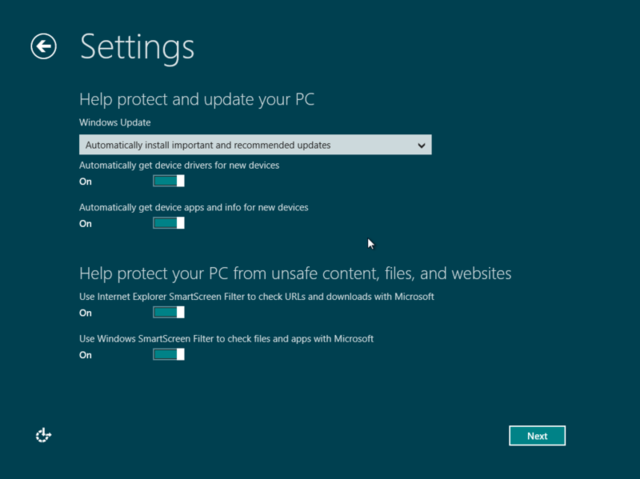
If you select "custom," you'll go through options for sharing and connecting to devices; whether to automatically download updates and new device drivers; whether to send diagnostic information to Microsoft; whether to share information such as your name with applications; and whether to turn on the Windows Location Platform for location-based app settings. Here's an image of the settings for keeping your computer up to date and safe from viruses:

Now you can sign into the OS so that you can download applications from the new Windows Store and sync data across different computers. 

You'll be asked to enter a mobile phone number, alternate e-mail address, and security question, so Microsoft can help you reset your password if you can't log in. After signing in, you'll finally be looking at Microsoft's brand-new Metro interface for Windows 8: 

There's lots of stuff you can do in the Metro interface, such as accessing the Windows Store, and various applications such as Mail, SkyDrive, Photos, Internet Explorer, Xbox Live Games, and more. But if you find Microsoft's new tile-based setup overwhelming, you can switch back to the traditional desktop interface: 

And now you've seen the Windows 8 installation process.